

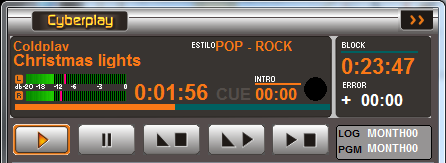
- Interpreter, title and file style during playback.
- Level indicator (dBfs).
- Elapsed time indicator (hours:minutes:seconds).
- A horizontal bar that fills as playback progresses.
-
Transport controls (explained in the CyberPlay Operation section).
Intro
Countdown timer indicating the duration of a song’s introduction, i.e., the time before the vocal track begins.- Allows the announcer to know how much time they have to talk over the song intro.
- The Intro duration is defined in the InfoMusic Production window and can be modified from InfoMusic On-Air.
- If tracks have presentation files (Partner), the Intro time is crucial for synchronizing these presentations.
Fades
To the right of the Intro indicator, a circle appears that progressively fills each time AUDICOM performs a fade between two audio sources.Block (bloque)
Displays the remaining time in minutes and seconds until the completion of a block.- A line above the numbers graphically indicates the elapsed time.
- In live programs (manual operation), AUDICOM remains paused during the block.
- The counter shows how much time is left until the next break, serving as a warning.
- The operator must press Play for the break to go on-air.
Error
Indicates in minutes and seconds how much the programming has advanced or fallen behind compared to the original schedule.- In automatic mode, AUDICOM corrects the error as much as possible using commercial block tolerances.
- In manual mode, errors may occur due to programs or newscasts having different durations than scheduled.
- An error of -05:00 indicates the next block will start 5 minutes earlier than scheduled.
- This information allows the operator to correct by taking actions such as adding or removing music, promos, or commercials.
Expanded Mode
Allows widening the CyberPlay window, displaying more information on the screen.- LOG: Log file loaded for the current day.
- Double-clicking the field opens a window to load any
.logfile for the day.
- Double-clicking the field opens a window to load any
- PGM: Program file loaded for the current day.
- Double-clicking the field opens a window to load any
.pgmfile for the day.
- Double-clicking the field opens a window to load any
Comments Window
Displays additional data about the currently playing track:- Artist and composer.
- Annotations or comments.
- When 15 seconds remain until the end of the track, information about the next item appears.
- It also indicates if the track has an associated file, such as presentations.
Pop-up Messages
If a user attempts to perform an unauthorized operation, a pop-up message appears informing them of the restriction.- These messages automatically disappear after a few seconds.
- They can also be dismissed by clicking or pressing ESC.
Playback Controls
The following describes the controls and operations of the CyberPlay (On-Air Display) window.Keyboard shortcuts are indicated in brackets.
Play [spacebar / Home]
- Starts playback from the title marked as “next” (green cursor).
- If Play is pressed during playback, it skips to the next title.
- The skip is always done by cut.
- To fade to the next title, use Fade → Play.
- In case of restart after a power outage, if Autorun is enabled:
- AUDICOM starts as user auto.
- If 1 minute elapses without intervention, it starts playback from the title closest to the current time.
- Configured in the Configuration Panel > Preferences.
Some stations generate a “virtual autorun” by scheduling a Satfill block in the early morning.
This procedure is explained in Nighttime Transmission Cut.
This procedure is explained in Nighttime Transmission Cut.
Pause / Stop [End]
- If pressed during playback:
- Pause: stops the track, allowing resumption with Play.
- Stop: completely stops playback.
Fade & Stop [Ctrl + End]
Reduces the level by 20 dB per second until playback stops.
Fade & Play [Ctrl + Home]
- The current track ends with a fade-out.
- The next track starts playing.
- If tracks have fade-in and fade-out, a crossfade is applied.
Stop Point [Page Up]
Inserts a pause in the CyberPlay list:
- When the current track ends, playback stops.
- The next track becomes the “next” (green cursor).
- Representation: black bar with the label PAUSE.
- Insert pause on selected track (yellow cursor).
- If no selection is made, it is inserted below the red cursor (currently playing track).
- Remove pause: select it and press the Pause button, or drag it to the left.
- It can also be done from the context menu (right-click).
Actions in the title window
Select a Title [Arrow Keys ↑ / ↓]
- A click on a title marks it with a yellow cursor (selection).
- Using the arrow keys, the selection cursor moves through the list.
Preview Monitoring (Cue) [Del]
- Double-click on a title → playback through Cue output.
- Second double-click → plays the last 5 seconds (CUE END).
- Output configuration in Configuration Panel.
- Control from InfoMusic On-air, with level indicators and position bar.
- Stop Cue playback: Stop-cue in InfoMusic or ESC key.
- Activate CUE by double-clicking the left legend of the counter.
- Audio plays from Live Assist but:
- Not reported via RDS/iRDS.
- Not recorded in
.airfiles.
Delete a Title [Backspace]
- Select the title and drag it to the left side of CyberPlay or to the counters.
- Alternatively: right-click → Remove.
Insert a Title [Ins]
- You can insert titles from other modules (InfoMusic, MediaManager, Live Assist).
- Drag it to the CyberPlay window.
- A blue line appears indicating the insertion position.
- You can also do this with the insert button (blue arrow) or the Enter key.
Changing a Title’s Position
- Select the title and drag it up/down.
- A blue line appears indicating the new position.
Many operations may be restricted by the user profile.
If you attempt a prohibited action, a popup message will appear indicating the restriction.
When in doubt, consult with the network administrator or technical supervisor.
If you attempt a prohibited action, a popup message will appear indicating the restriction.
When in doubt, consult with the network administrator or technical supervisor.