

Live Assist Button Panels
The Live Assist 1 and Live Assist 2 modules allow instant on-air playback of audio elements.They are primarily used for playing SFX, promos, jingles, and beds.
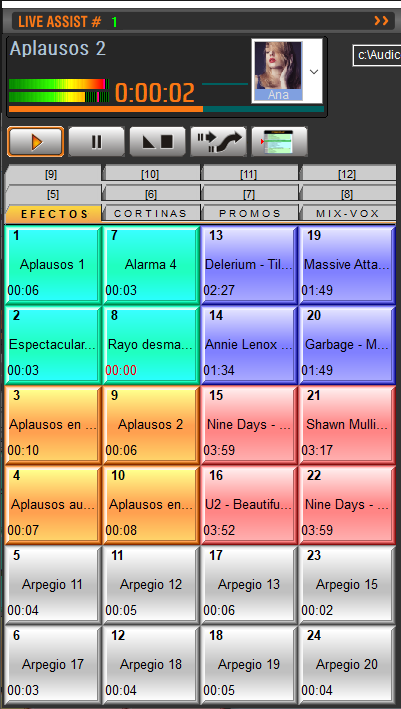
- Audio elements are organized in button grids.
- Each profile contains 12 pages or tabs.
- The number of buttons per page depends on the rows and columns defined in the Configuration Panel.
- The panel can be resized, and button sizes adjust automatically.
- Keyboard (see section Keyboard Control).
- External controllers via MIDI.
Audio Devices
- Independent output devices can be assigned or share the same device as CyberPlay.
- When sharing, the mix is performed internally according to the MIX value.
- Assignment is done from the Configuration Panel.
Video
In Audicom Black Video, Live Assist also supports video playback.- It does not interrupt or overlap videos that are playing in CyberPlay or PlayList Manager.
Output Devices
Both modules can play through internal mixing on CyberPlay or through independent outputs.The assignment is made from the Configuration Panel.
Expanded View
You can toggle between compact and expanded views.- The switch is made using the Maximize button, located in the title bar.
Pause, Stop and Fade-Stop
- Pause: stops playback and allows resuming with Play.
- Stop: completely stops and returns to the beginning.
- Fade-Stop: gradually attenuates the level and then stops.
Preview Monitoring (CUE)
- Right-click on a button → playback on dedicated CUE channel.
- Holding right-click >1s also activates CUE.
- Alternative method: double-click the CUE label on the display.
Playback Modes
Live Assist has three modes, selectable by pressing the button successively:- Normal:
- Plays once.
- If another file is triggered, it queues (blinking text).
- Loop:
- Looped playback.
- Stops with Stop or by changing modes.
- Instant:
- If another button is triggered, it interrupts the previous one.
Chaining with on-air
- While the on-air module is stopped:
- Trigger one or more buttons in Live Assist.
- Then press the on-air chaining button.
- The window closes and when the sequence ends, the on-air playlist continues.
The same operation can be performed from the keyboard using the spacebar after triggering a file.
In and Out Markers
1
Activate CUE
Double-click the CUE label to put Live Assist in CUE mode.
This prevents audio from being reported in RDS or recorded in
This prevents audio from being reported in RDS or recorded in
.air files.2
Trigger button
Press the button you want to mark.
3
Define markers
Right-click and select Mark In or Mark Out.
Listen to the audio and mark at the desired moment.
Listen to the audio and mark at the desired moment.
Icon Window
- Displays the name and icon of the active Live Assist profile.
- Icons are
.icofiles located in\Audicom\LA-Icons. - Icons can be added or deleted as preferred.
Private Profiles
- Private profiles are only accessible by the user who created them.
- They are identified with the owner’s name.
- If another user attempts to access, a restriction message appears.
Export / Import Page
- Export: saves the current page as a Playlist (
.txt). - Import: loads a Playlist into the Live Assist button panel.
Create Live Assist Profiles
1
Open creation menu
In the icons window, right click → Add.
Enter name and icon for the profile.
Enter name and icon for the profile.
2
Define privacy
Enable the Private option if the profile should only be available for that user.
(Requires administrator authorization).
(Requires administrator authorization).
3
Load titles
Drag titles from Media Manager.
The button takes the color of the title’s category.
The button takes the color of the title’s category.
4
Edit profile
To change name or icon: load the profile → right click on icon → Edit.
Live Assist Configuration
Button Panel Size
- Configured in Settings Panel > Preferences.
- Number of rows and columns can be adjusted.
- Larger buttons with fewer elements, smaller buttons with more elements.
- Default configuration: 4 columns x 12 rows = 48 buttons per page.
- Font type and size can also be changed.
Data Files
- Information is stored in
Liveass.datandLiveass2.dat. - The path is defined in
audicom.ini.
Icons
- Default location:
\Audicom\LA-Icons. - Location can be changed in
audicom.ini. - Icons can be freely added or removed.