

Ethernet Connection for Remote Control
The console features an Ethernet port for remote control via a local area network (LAN). The built-in web control interface is accessed using a web browser from any computer connected to the same network.Step 1: Physical Connection
Connect the CONTROL ETHERNET port on the UNIDEX to a port on the router, using a standard Ethernet network cable.Do not confuse the Ethernet connector for CONTROL with the Ethernet port for STREAMING.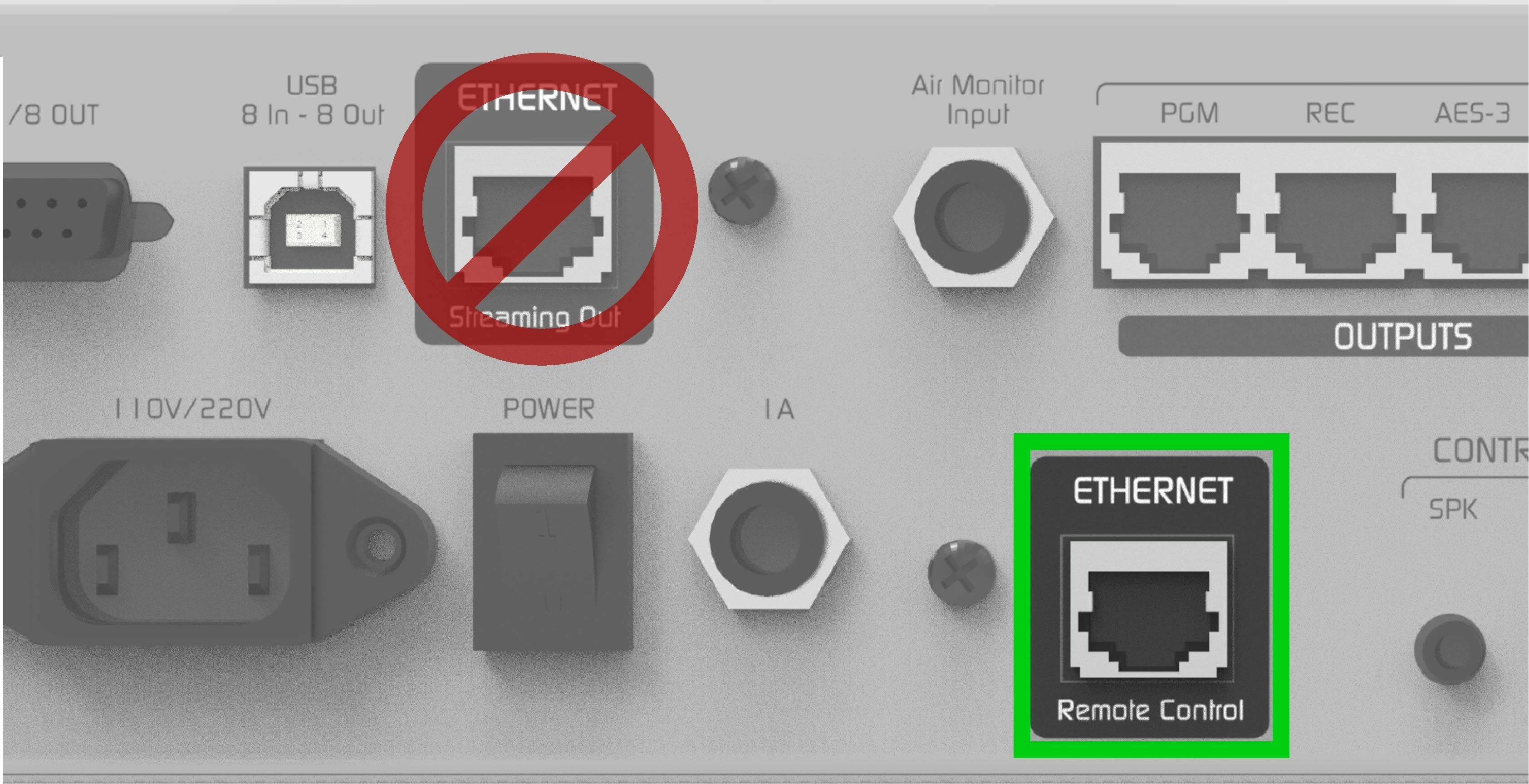
- From the factory, UNIDEX is configured with DHCP enabled.
- The router will automatically assign an available IP address. This IP may change when the console is restarted, unless a static IP is configured, but this is usually not necessary (if a static IP is required, go to:
SETTINGS → SYSTEM). - The current IP address is displayed on the console’s main screen, under the name:
UNIDEX IP.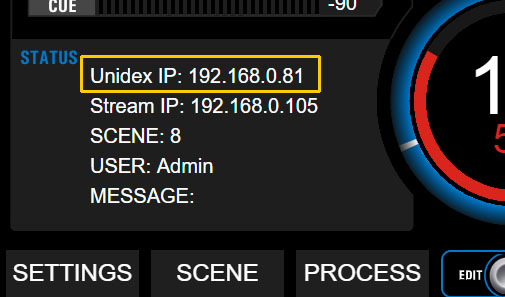
Solidyne Multi-DiscoveryIf you do not have physical access to the console, you can download the Multi-Discovery tool which detects Solidyne devices connected to the network.
Step 2: Access via Web Browser
From any computer connected to the same local network (preferably via cable) open a web browser (recommended: Google Chrome) and enter the IP address displayed as UNIDEX IP. This will open the web interface for console operation and configuration. The interface is similar to the one shown on the onboard touchscreen.Ethernet Connection for Streaming Services
-
Connect the Streaming Out port to the LAN router using a standard Ethernet cable.
DO NOT CONFUSE the streaming Ethernet connector with the remote control Ethernet connector.
Both use RJ45, but serve completely different functions.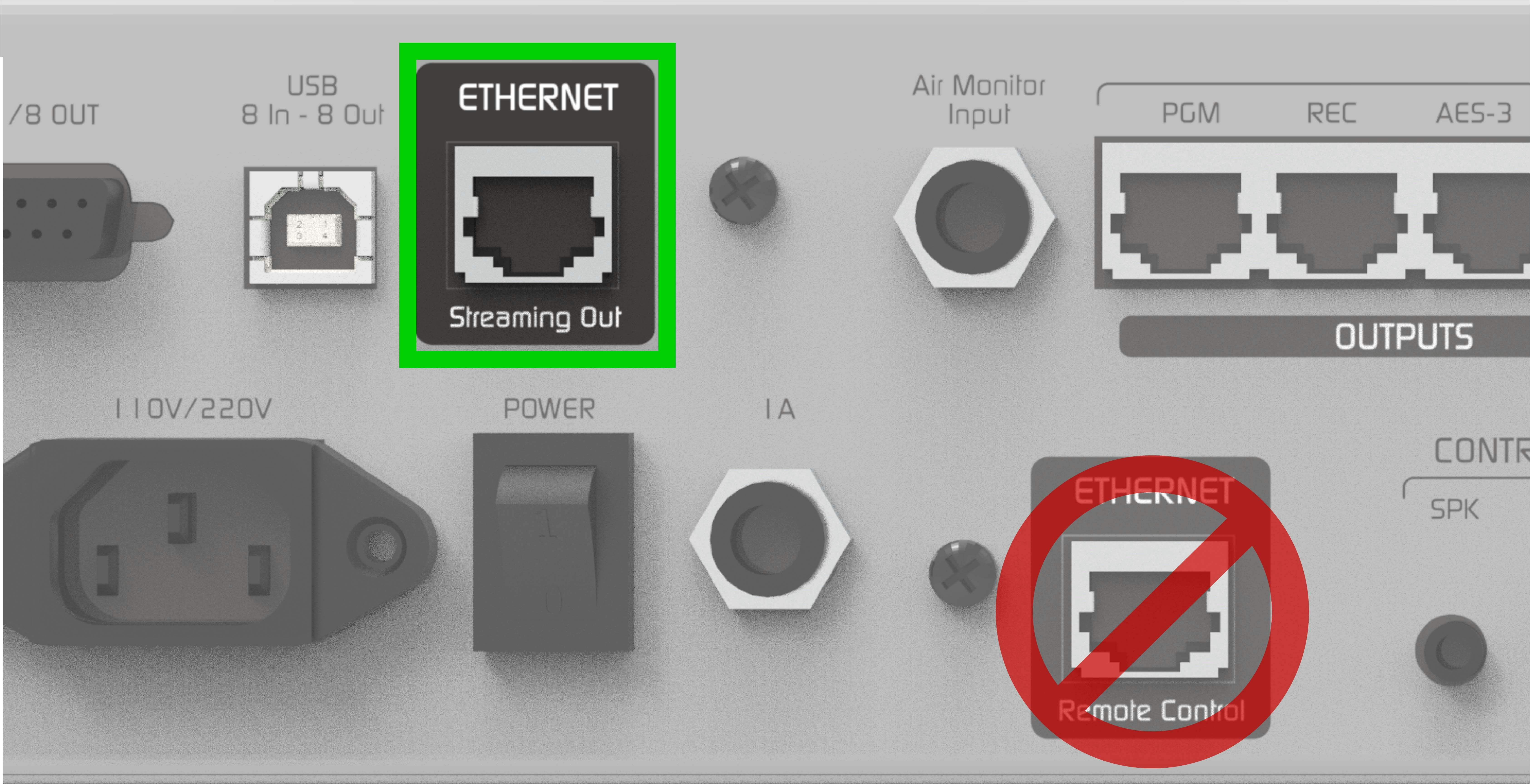
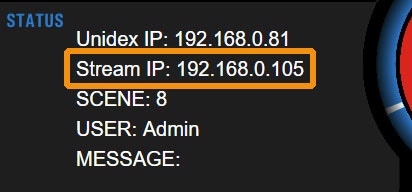
- The router will assign an IP address via DHCP, visible on the main screen as: Stream IP
- This IP may change when the console is restarted, unless a static IP is configured.
-
Streaming service configuration can be done in two ways:
- From the console’s touch screen.
- From any computer on the network, by accessing the Stream IP address from a web browser.
Solidyne Multi-DiscoveryIf physical access to the console is not available, you can download the Multi-Discovery tool which detects Solidyne devices connected to the network.