

Startup Sequence
When the console is powered on, UNIDEX starts its operating system. Once the startup sequence is complete, the main screen is displayed and the following are loaded:- The default user profile.
- The last active scene before shutdown.
User Profile and Permissions
The user profile determines the level of access to functions within the console.From the configuration, you can define which profile is loaded automatically when the unit is powered on. By default, the console starts with the ADMIN profile, which has full access.
Available user levels
- BASIC – Access restricted to essential functions
- EXPERT – Advanced access (requires password)
- ADMIN – Full access (requires password)
During startup, no password is requested, even if the default profile is protected.
For the UX24 to start in restricted mode and require a password to access advanced functions, the default profile must be changed to one other than ADMIN.
For the UX24 to start in restricted mode and require a password to access advanced functions, the default profile must be changed to one other than ADMIN.
SETTINGS → USERS
System Actions
System actions are available from the main screen, by accessing the option STATUS → ”+”.- On the main screen, touch the ”+” icon located in the STATUS section.
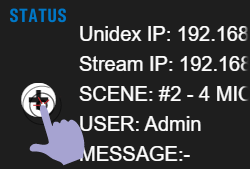
- A pop-up window appears. These functions allow you to restart different stages of the system separately, and are not used during normal operation.
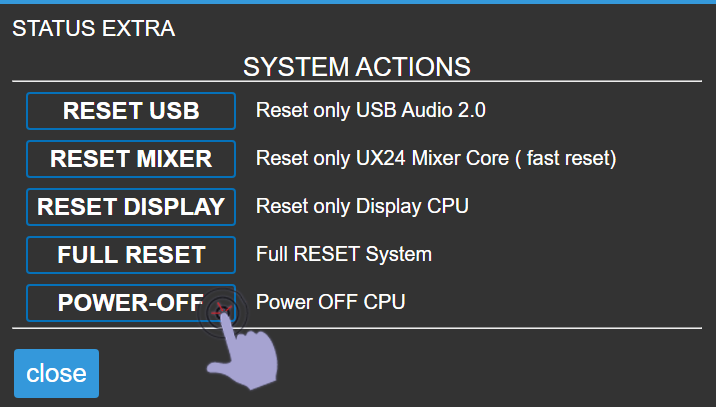
The reset actions are technical maintenance tools.
Under normal operating conditions, it is not necessary to execute them.
Under normal operating conditions, it is not necessary to execute them.
Available Options
- RESET USB
Resets only the USB stage.
Forces the operating system to recognize connected USB devices again. - RESET MIXER
Resets the internal mixing engine of UNIDEX and the control surface.
Does not affect the CPU or the display. - RESET DISPLAY
Resets the onboard computer that manages streaming and the graphical interface. - FULL RESET
Resets all stages of the system.
Equivalent to a complete power-off and power-on of the equipment. - POWER-OFF
Shuts down the internal computer, which handles the touchscreen display and streaming services.
The console will continue to operate, even when controlled from the WEB Control.
To completely power off the equipment, wait a few seconds and turn off the power supply (on the rear panel or the external supply depending on the model).