

Access it by pressing TELCO on the main screen.
Here, the channels defined in TELCO mode are displayed (see CHANNEL screen), which are those associated with landline (POTS) and Bluetooth mobile phones.
Landlines (POTS) and mobile phones are connected to UNIDEX via external adapters (Solidyne UDX 2TEL and TEL+BT).
TELCO Screen
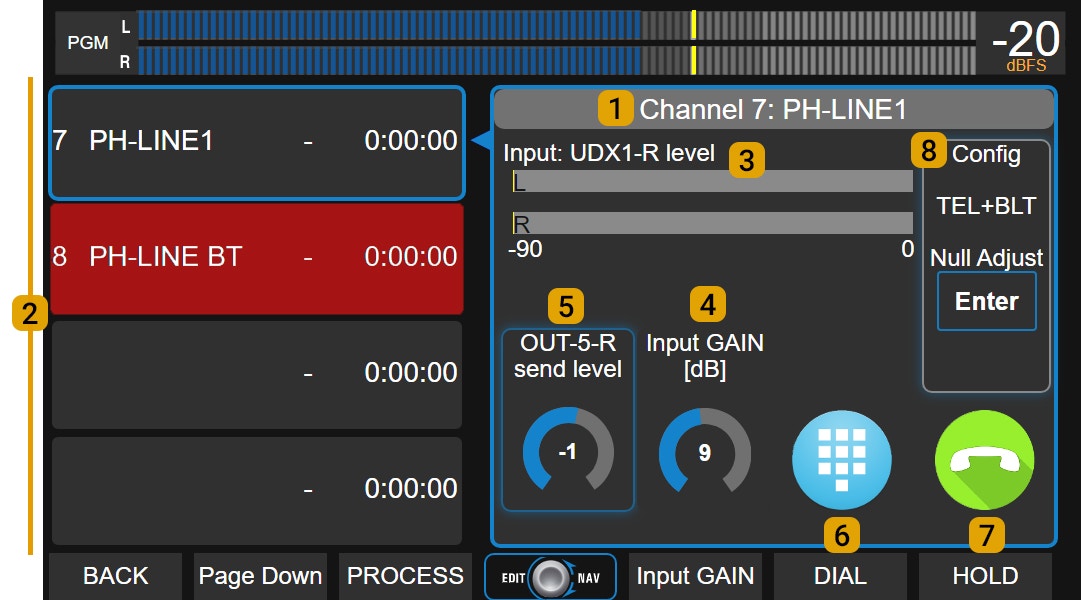
Available Lines (2)The UX24 supports up to 8 TELCO lines. They are displayed on the screen in two groups of four lines.
If there are more than four, the Page Down button allows access to the remaining lines. Each line indicates:
- Channel number and name.
- Status: Yellow: incoming call (RING). Green: line on hold (HOLD). Red: line on-air.
- Time on-air or on hold.
Displays the name and channel of the currently selected line. The on-screen controls always correspond to this line.
To select a line, tap it in the list. It doesn’t matter if it’s on-air, on hold, or inactive. Level Indicator (3)
Displays the received audio level. It also indicates the name of the UNIDEX input to which the UDX adapter is connected. Input Gain
Controls the input gain associated with the UDX adapter. It is adjusted using the encoder. Send Level
Adjusts the gain of the output associated with the UDX adapter for sending to the line. DIAL
Opens a DTMF keypad to dial a number (only on landlines). HOLD / HANG UP
- With an incoming call: takes the line and puts it on hold (HOLD).
- With an on-air call: ends the communication (HANG UP).
Displays the type of adapter and its options:
- NULL ADJUST: null adjustment (only on landlines with UDX 2TEL, 2TEL-P, and TEL+BT adapters).
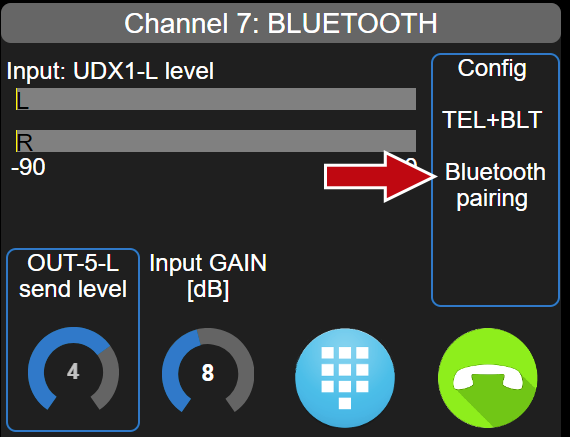
- BLUETOOTH PAIRING: activates pairing mode to link a mobile device (only on Bluetooth channels).
Note: Refer to the UNIDEX external adapters section for wiring details.
Operation with Mobile Phones
Pairing a Mobile Device via Bluetooth
When pairing a mobile phone to the console using a Bluetooth adapter, a wireless link is established that allows any call made from the mobile device to be put on-air, whether through the telephone network or apps. Procedure for pairing a phone for the first time:- Select the desired Bluetooth line in TELCO.
- Press BLUETOOTH PAIRING (search mode). The OLED display on the channel also indicates the “pairing” status.
- On the phone, enable Bluetooth and search for devices.
- Connect to SOLIDYNE BTM641.
- The TELCO and OLED displays will show PAIRED.
Recommendation: Maximize the Bluetooth volume on the phone during a call for the best signal-to-noise ratio.
Bluetooth Disconnection and Reconnection
There are three distinct actions when working with Bluetooth that should not be confused:- Enabling or disabling Bluetooth on the mobile device: Simply determines whether the feature is turned on or off on the phone.
- Pairing the mobile device with a Bluetooth device: This is the process by which the phone detects and registers an external device (headphones, car audio system, UNIDEX channel, etc.). It is performed once per device. If “unpaired,” the phone forgets the device, and pairing must be repeated to reconnect it.
- Connecting or disconnecting a previously paired device: The phone temporarily links to a device already registered. The action of connecting/disconnecting should not be confused with the action of pairing/unpairing. When Bluetooth is enabled on the mobile device, it can easily connect and disconnect to Bluetooth devices from the list of paired devices (if there are Bluetooth devices present that were not paired, they will not appear in this list).
- When Bluetooth is turned off on the phone: Usually, the call transfers to the phone without interruption, although the behavior varies by model. When Bluetooth is reactivated, the connection may be restored automatically or require reselecting the SOLIDYNE BTM641 device.
- When manually disconnecting the Bluetooth channel during a call: The call transfers to the phone, and upon reconnecting, it returns to the console.
- When activating the phone’s speaker mode during the call: The audio comes from the phone and leaves the console; reconnecting Bluetooth returns it.
Linking Multiple Phones
The console can handle up to 8 TELCO lines connected to mobile phones via UDX adapters.If there are multiple Bluetooth lines, the pairing procedure is the same as described, with some considerations. Example: The console has three Bluetooth lines named BLT-1, BLT-2, and BLT-3. The BLT-1 line is already paired with Mobile A, and now you want to pair Mobile B to BLT-2:
- Mobile A (BLT-1) can be connected or not; it doesn’t matter.
- On the TELCO screen, select the BLT-2 line and activate Bluetooth PAIRING.
- On Mobile B, activate Bluetooth and search for devices. Only devices in pairing mode will appear. There, you will see SOLIDYNE BTM641 corresponding to the BLT-2 channel, as it is the only UNIDEX device in PAIRING mode.
- Choose SOLIDYNE BTM641 (corresponding to the BLT-2 channel) and connect.
Edit the name on the phone: This option is found in the Bluetooth device properties; the procedure varies depending on the operating system.
Incoming Call on Mobile Phone
The phone is connected to the console via Bluetooth.- When a call comes in, CUE/SELECT flashes blue and the ring tone is heard through CUE. On the TELCO screen, the line shows RING (yellow).
- The call can be answered:
- By pressing CUE/SELECT on the channel.
- By tapping HOLD on the TELCO screen.
- When answered, the line goes into “hold” (HOLD). The caller does not go on-air but hears the program signal. This condition is indicated on the screen (HOLD in green) and by the ON AIR button flashing.
When the call originates from an app (WhatsApp, Telegram, Linphone, Viber, or others), many pre-2020 mobile phones do not support answering via Bluetooth. In that case: • Answer the call directly on the phone. • Then press ON AIR on the corresponding channel. The call goes into HOLD. • Proceed with normal operation (see below).
- To talk privately: hold down CUE (sends the command microphone and mutes control monitoring). When releasing CUE, it returns to the previous state (the talkback function does not change the CUE state). With CUE on, we hear the person on the other end of the line.
- To put on-air: press ON AIR and raise the fader.
- To return the line to hold, press ON AIR again.
- To hang up:
- Hold ON AIR for 3 seconds.
- Or tap HANG-UP on the screen.
IF THE MOBILE PHONE IS NOT CONNECTED VIA BLUETOOTHIf, at the time of receiving the call, the mobile phone is not connected to UNIDEX, answer the call and then activate/connect Bluetooth on the phone.Once the phone is connected to a Bluetooth channel, press ON AIR on the channel, and the call goes into hold.
Generar la llamada desde el móvil
- En el teléfono, Bluetooth está activado y conectado a un canal UNIDEX:
- Realizar la llamada en el móvil. Puede ser una llamada convencional o mediante una app.
- Pulsar ON AIR para retenerla en consola.
- Hablar desde la consola usando el micrófono de órdenes y el circuito CUE.
- Si el móvil no está conectado:
- Hacer la llamada y luego activar/conectar Bluetooth en el móvil. Si Bluetooth estaba desactivado, normalmente se reconectará a UNIDEX al activarlo. Si en el móvil Bluetooth está activado pero no conectado, conectarlo seleccionando el dispositivo UNIDEX en la lista de dispositivos.
- También se puede activar Bluetooth antes de realizar la llamada y una vez conectado a la consola, discar.
Comunicaciones desde software externo
En los últimos años se popularizaron las llamadas de voz y videollamadas por Internet (WhatsApp, Discord, Zoom, Google Meet, etc.).- Desde un teléfono vinculado por Bluetooth: se operan como una línea TELCO.
- Desde una computadora externa: no pueden configurarse como TELCO; se manejan como señal de audio de nivel de línea, con particularidades:
- El USB-OUT de UNIDEX asignado como entrada en el software de la PC debe enviar PGM en modo mix-minus para evitar que el interlocutor reciba su propio audio.
- El operador puede usar CUE en modo talk-back (manteniendo pulsado) para hablar en privado con el software, igual que con una línea TELCO.
- Es posible integrar estas comunicaciones en conferencia con una o más líneas TELCO.
Operation with landlines
Incoming Call
- CUE flashes blue and ring tone sounds in CUE. The TELCO screen also shows RING on the line.
- Answer:
- Press CUE/SELECT on the channel.
- Tap HOLD on the screen.
When answered, the line is seized and the call is placed on HOLD. The line audio does not go on-air but the caller hears the program signal.
- For private talk: hold CUE pressed. When releasing CUE, the button returns to its previous state (the talk-back function does not change the CUE status). When CUE is active, the line audio is heard through the cue circuit.
- To put on-air: ON AIR and raise fader.
- To hold: ON AIR again.
- To hang up:
- Hold ON AIR for 3 seconds.
- Or tap HANG-UP on the screen.
Calling from the Console
(For landlines only)- Press TELCO.
- Select landline.
- Tap DIAL to access the dial pad. This action takes the line, which is placed on HOLD. The dial tone is heard through the CUE circuit.
- Dial the number. Numbers are dialed directly as they are entered.
- Speak privately through CUE.
- Proceed as with an incoming call.
Important: Do not exceed the send level to the line to avoid feedback through the hybrid.
A telephone communication does not always need to reach 0VU to match the loudness of studio voices peaking at the same level. The low frequencies, which carry the most energy, produce greater deflection on the meters but are not present in telephone line audio. For the ear, loudness is defined by the mid-frequency range. If you notice that the VU meter “peaks lower” with the telephone line compared to studio voices, this does not mean that it “sounds lower.” Additionally, the broadcast audio processor will handle equalizing both signals.