

Recording Screen
The MX2200 console allows for a safety recording of the event in MP3 (16-bit / 48 kHz) stereo format, widely supported by audio players and editors. The RECORDING screen is accessed by turning the encoder on the HOME screen. It allows you to start/stop the recording and configure its parameters.
- STATUS
Allows you to enable or stop the recording.
When stopped, the file with the recorded content up to that point is automatically generated. - MAX TIME
Defines the maximum recording time.- Prevents the operator from having to stop it manually.
- The recording is automatically cut off when the defined time is reached.
- Editing: the value is entered using the console’s numeric keypad (maximum 240 minutes / 4 hours).
- It is possible to increase the time limit while the recording is in progress, without interrupting it.
- BIT RATE
Defines the audio quality.- Range: 64 to 320 kbps.
- The higher the value, the better the quality and the larger the file size.
- At 192 kbps, approximately 100 hours can be stored within the console.
When recording is enabled, the main screen indicates the recording status and shows the remaining available time.
Recording Management
Management (monitoring, playback, renaming, downloading, and cleanup) is performed remotely from a networked computer. To access: enter the equipment’s IP address followed by /recording in a browser (Firefox, Chrome, Safari, Edge, etc.). Example:192.168.0.118/recording
1
Connect the console
Connect the console to the local network using the Ethernet port (recommended) or the Wi-Fi antenna.
2
Open the browser
On a computer on the same network, open a browser and enter the MX2200’s IP address with the subpath
/recording.3
Get the IP address
To find the assigned IP, turn the CONTROL (encoder) knob and access the SETUP screen.
The first three items show the connection status and IP address for Ethernet, Wi-Fi, and 4G Modem.
The first three items show the connection status and IP address for Ethernet, Wi-Fi, and 4G Modem.
Web Interface
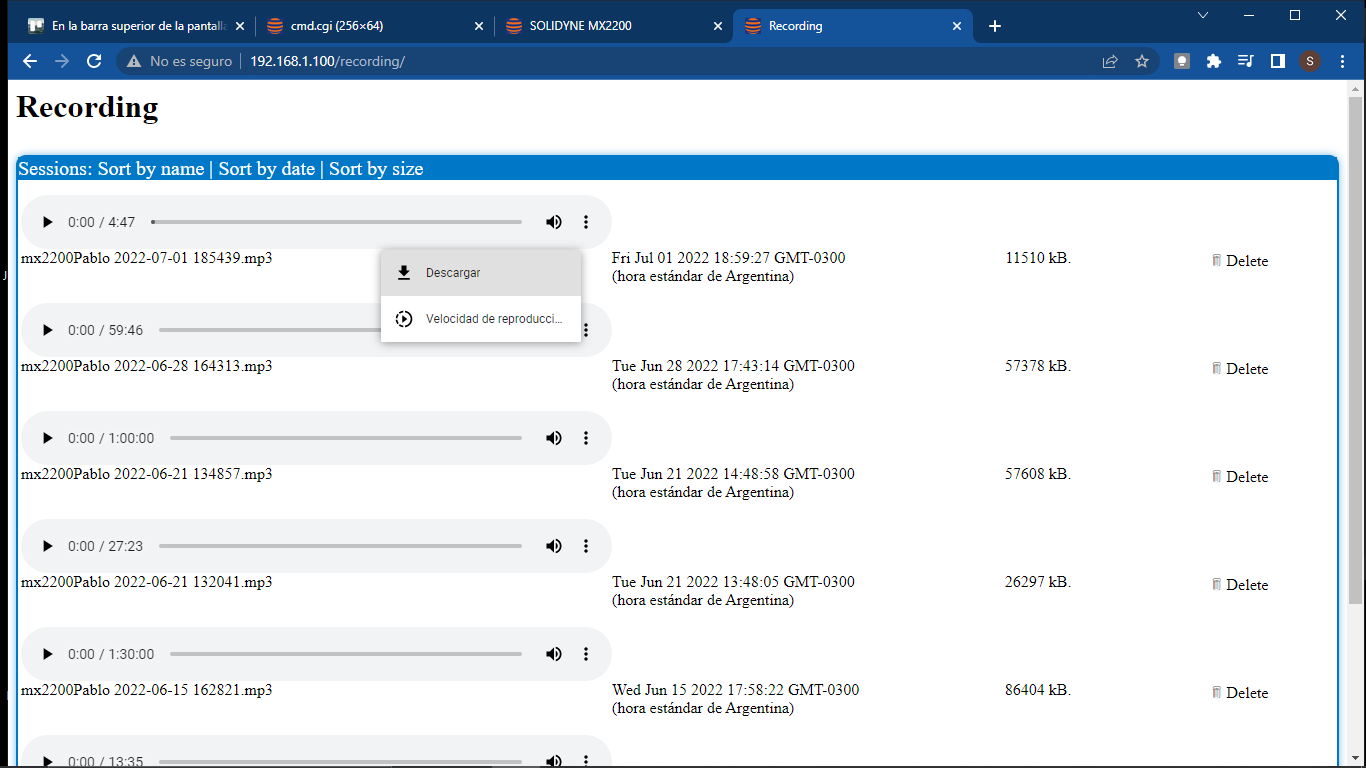
-
Each _recording _is saved with the name:
[Unit Name] + [Date and Time] - The HTML5 interface includes a player for fast-forward, rewind, and pause.
-
The list can be sorted by name, date, or size.
The displayed date corresponds to the local time of the client computer, not the console.
- The audio can be downloaded and will be saved to the browser’s default download folder.